
How to Flash Raspberry Pi OS Using balenaEtcher
Learn how to flash Raspberry Pi OS to an SD card using balenaEtcher. A simple step-by-step guide covering download, setup, and headless boot configuration.
SR
Swakit Rane
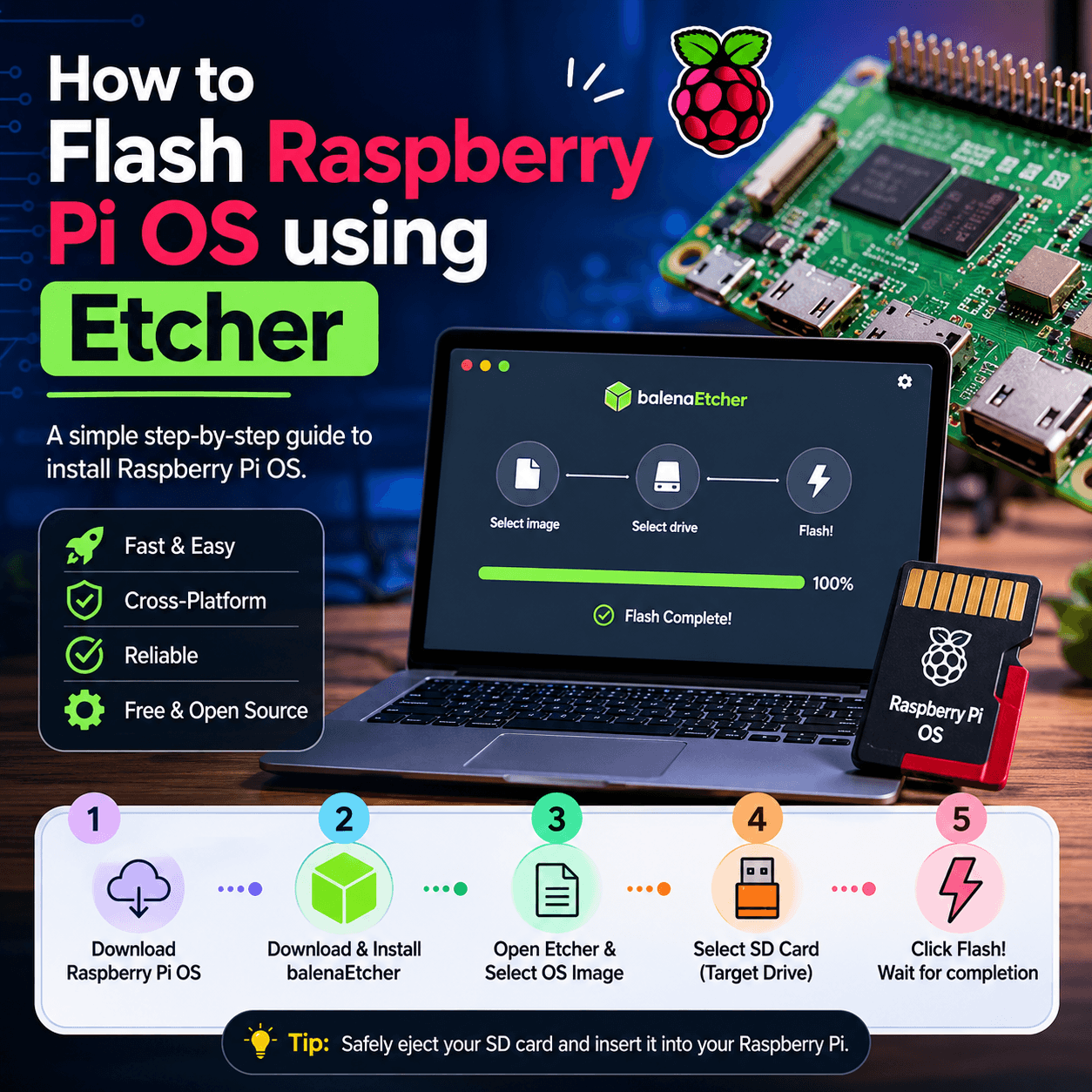
Learn how to flash Raspberry Pi OS to an SD card using balenaEtcher. A simple step-by-step guide covering download, setup, and headless boot configuration.
Etcher (officially balenaEtcher) is a free, cross-platform tool that writes OS images to SD cards and USB drives. Here's how to use it to prepare a Raspberry Pi OS card.
.img.xz file (no need to extract — Etcher reads compressed images directly).Plug the microSD card (via adapter or reader) into your computer. Back up anything important on it first — flashing erases everything.
If you won't be using a monitor and keyboard, configure access before first boot:
boot (or bootfs) partition appears.ssh (no extension) in the root of that partition to enable SSH.wpa_supplicant.conf with your network details, or — easier — use Raspberry Pi Imager instead of Etcher, which has a built-in settings dialog for SSH, Wi-Fi, hostname, and user account.The Raspberry Pi Foundation now recommends its own Raspberry Pi Imager for most users — it downloads the OS for you and includes the headless-setup options mentioned above. Etcher is still excellent if you already have the image file or prefer a more general-purpose flasher, but if you're starting fresh, Imager is a touch more convenient.